Gallery Platform Usage Guide
Learn how to import templates, publish your work, and share practical dashboard ideas with the FanRuan community.
Platform Introduction
Gallery brings together official FanRuan templates shaped by years of project experience and industry practice.
You can browse proven examples, reuse suitable templates, and learn from practical design patterns to build faster with more confidence.
We also want Gallery to become a professional space where creators exchange ideas, share templates, and make their work more visible.
Tutorial Overview
- Installing the
Shared Plugin - Importing and Exporting Templates with the plugin
- Uploading Your Templates to the FanRuan Platform
Need a hand?
Continue the conversation in our community
Get quick answers, compare implementation ideas, and share the templates you improve along the way.
Detailed Tutorial
Installing the Shared Plugin
The plugins for FineReport and FineBI are different. Select your product below to view the installation guide.
Step 1: Install FineReport product. If already installed, skip this step.
After completing the form, you'll receive the product download link and activation code. For detailed installation instructions, refer to: https://help.fanruan.com/finereport-en/doc-view-69.html
Step 2: Download and install the FineVis Data Plugin.
FineVis Data Plugin version 4.9.0 or higher, please skip this step.For detailed installation instructions, refer to: https://help.fanruan.com/finereport-en/doc-view-2198.html
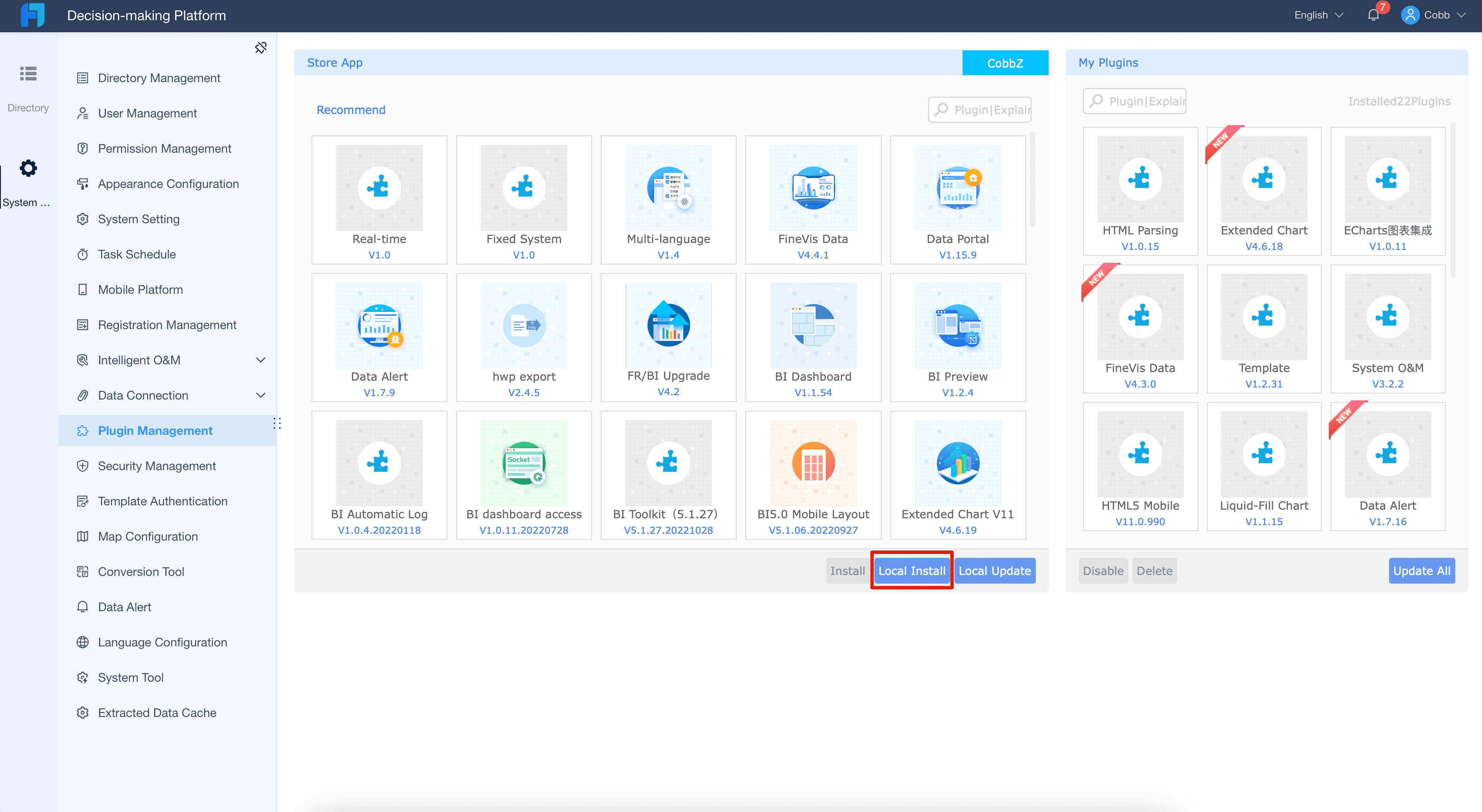
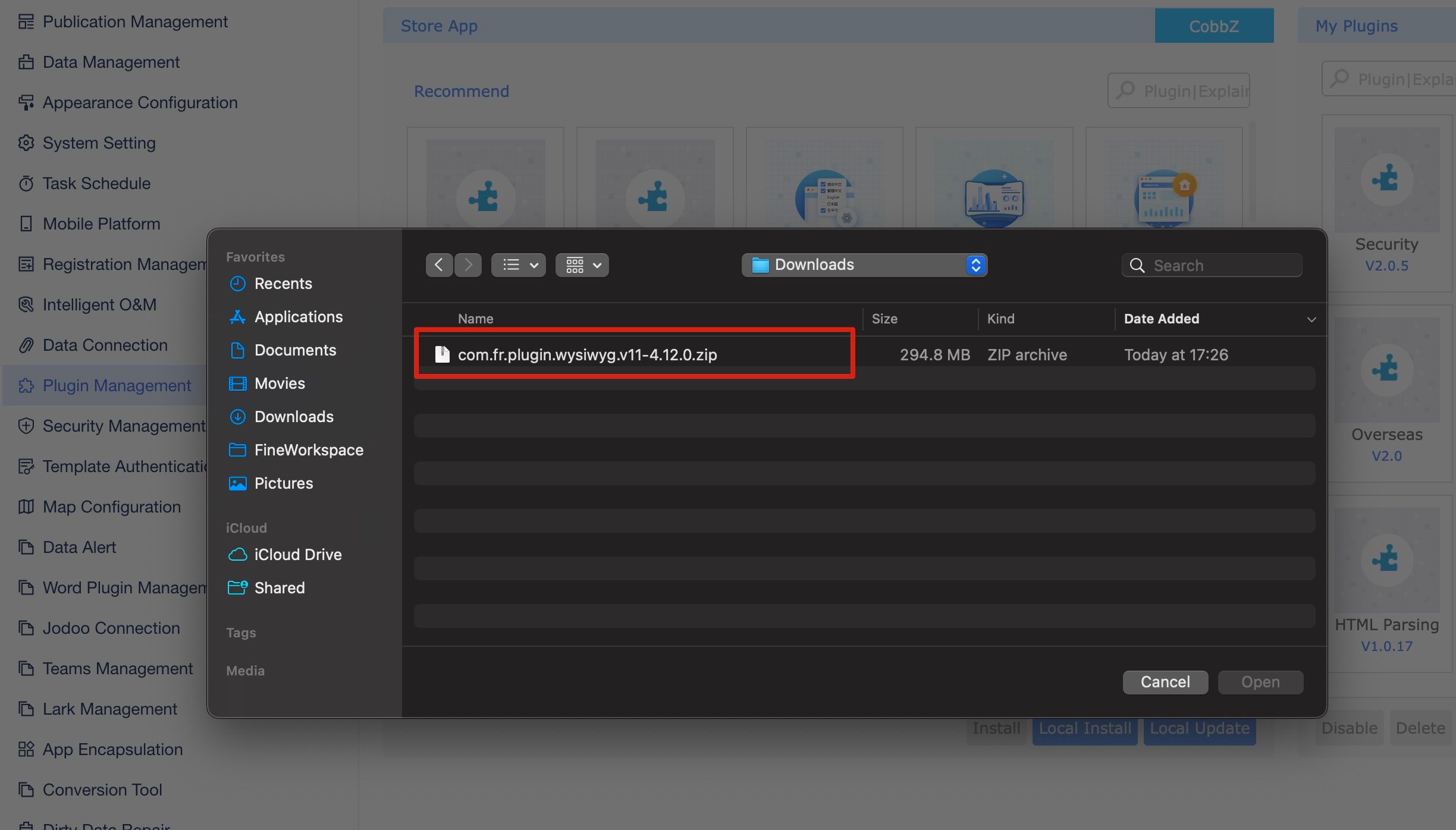
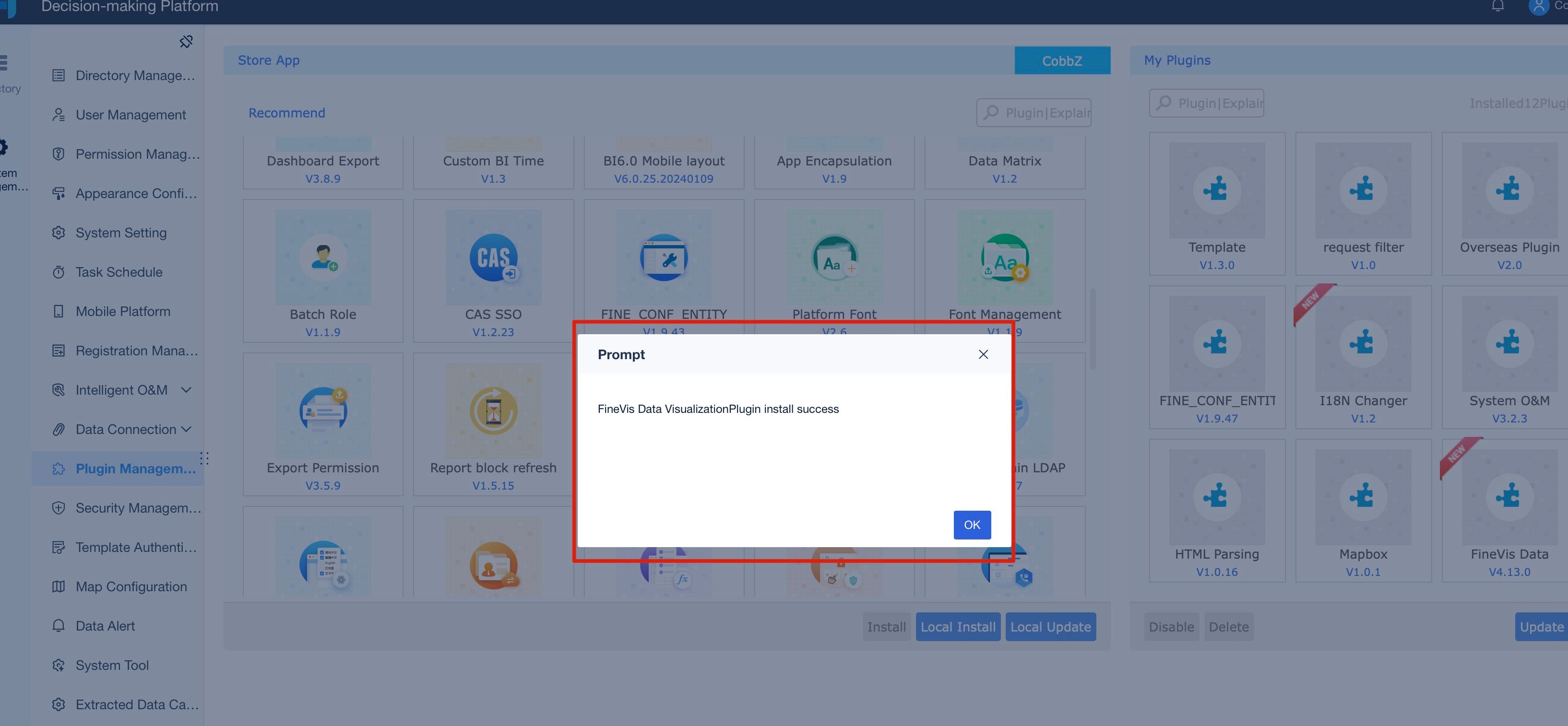
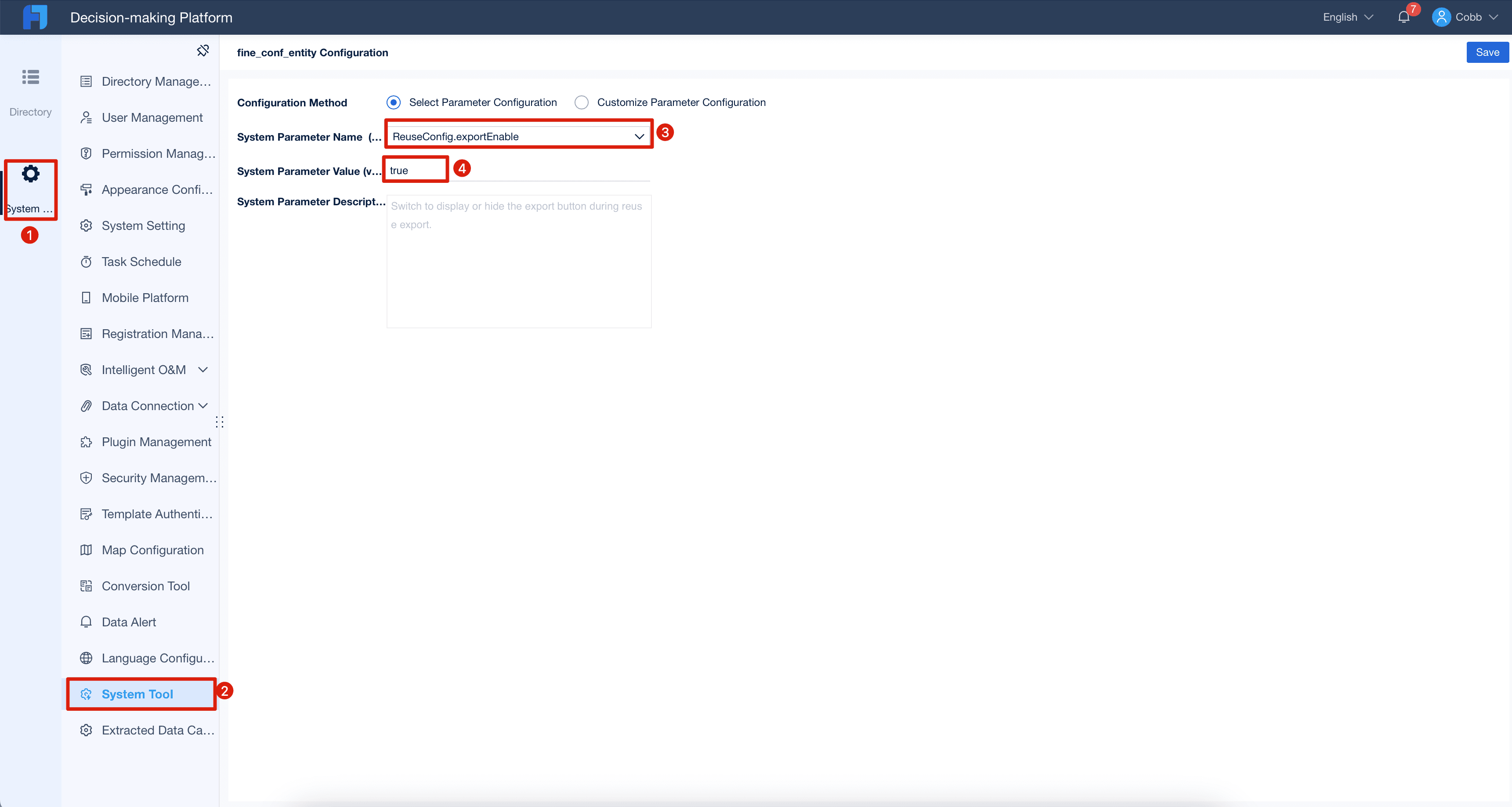
Step 3: Adjust parameters to enable export functionality.
Before adjusting parameters, install the fine_conf_entity visual editor plugin: Plugin download link. Installation method is the same as the Shared Plugin above.
Change ReuseConfig.exportEnable to true
Step 4: Return to the designer interface and confirm import and export functions are enabled
-
New FineVis Visualization Dashboardcorresponds to import functionality -
Export as Reuse Packagecorresponds to export functionality
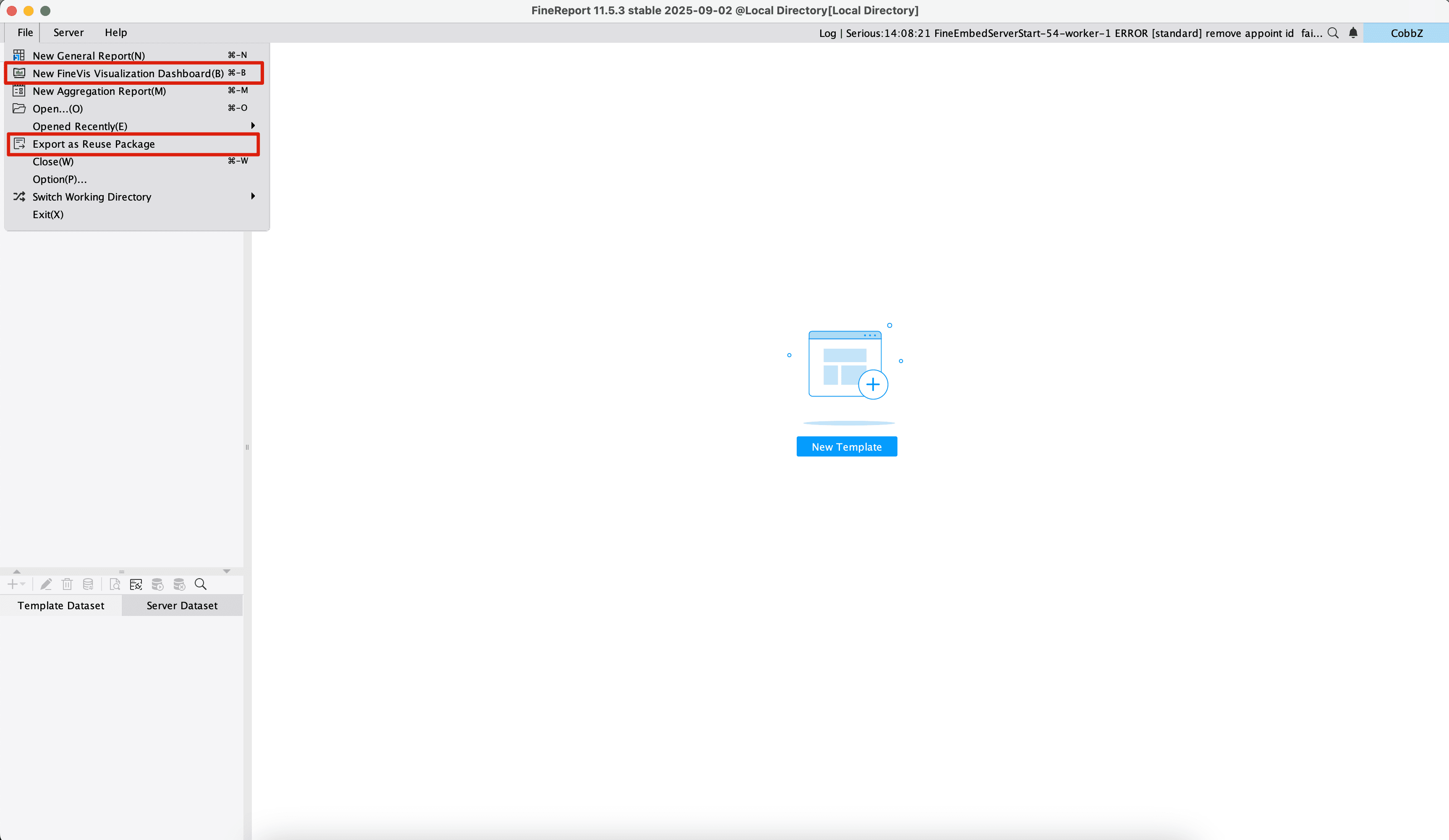
Importing and Exporting Template with the Shared Plugin
Importing Template
- Download the
.mfvsfile from the gallery platform. - Open FineReport and click
File > New FineVis Visualization Dashboard. - Select
Local_Resourceand import the.mfvsfile. - Create the dashboard to your custom file directory.
Exporting Template
- Open FineReport and click
File > Export as Reuse Package. - Add resource to combination and define the name, description, and cover image.
- Choose the
Dataset Type. The default isBuilt-in Dataset. If there are filter components, you may need to specify filter parameters, so we recommend using theSample Data. - Click
Direct Export.
Uploading Your Templates to the FanRuan Platform
After learning the export tutorial above, you should now be able to export your templates normally.
We welcome you to upload your templates to our platform to build your reputation and personal influence.
Upload application link: Click to Upload